 ChessPuzzlePrint
Chess Board Editor
Pick a piece, click the squares, and the FEN appears underneath as you build the position.
What the chess board editor does
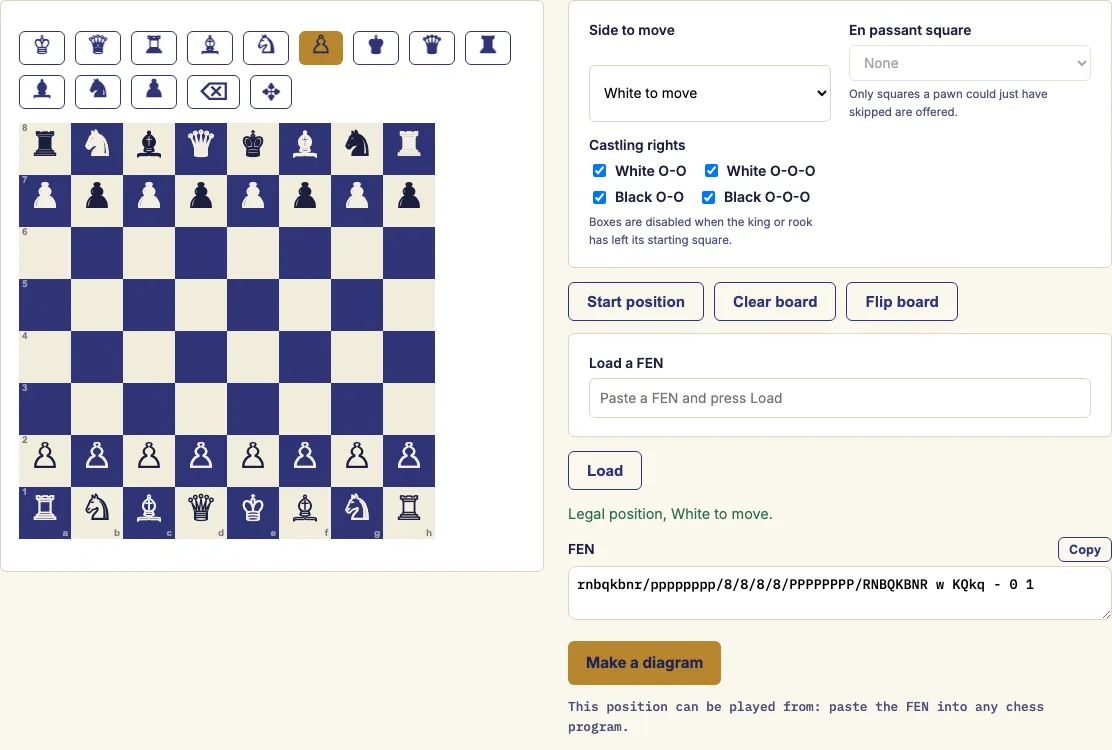
The chess board editor is an online chess editor for building a position by hand and getting it as FEN, the one-line text format used by chess programs, diagram makers and puzzle collections. Choose a piece, click the squares where it belongs, and the FEN updates with every click. You can also paste an existing FEN to load a position and change it. The editor runs entirely in your browser. It tells you whether the result is a legal position you can play from or only a picture you can draw, so you know what you have made before you use it.
How to use the chess board editor
- Click Start position or Clear board, or paste a FEN into the Load box and press Load.
- Choose a piece in the palette. White pieces are on the first row and black pieces on the second. Click squares to place the piece. Clicking a square that already holds that piece removes it.
- Use the eraser to clear single squares, or the move tool to pick a piece up and put it down somewhere else.
- Set the side to move, tick the castling rights that still apply and, if the last move was a two-square pawn advance, choose the en-passant square.
- Read the status line, then copy the FEN or press Make a diagram to turn the position into a printable image.
Flip board shows the position from Black's side. It does not change the FEN. The link in your address bar always contains the current FEN, so you can bookmark a position or send it to someone. Make a diagram opens the FEN to diagram tool with your position already filled in.
To count each side's pieces, paste the same FEN into the material calculator. Keep the copied FEN in a text file if you want to reuse the position later, because that one line is the whole position.
How do I set up a position on a chess board editor?
Start with the board you want, either an empty one from Clear board or the standard setup from Start position. Then place each piece by choosing it in the palette and clicking the squares, and fix the rest of the position with the side-to-move, castling and en-passant controls.
The editor enforces the basic rules of chess as you work. Each side needs exactly one king, and placing a second king of the same colour moves the existing king instead of adding one. No pawns may stand on the first or eighth rank. The side that is not to move must not be in check, because that would mean the previous move left its own king in check.
The castling boxes follow the board. A box is greyed out when the king or that rook is not on its starting square, since the right could not exist in a real game. The en-passant square is offered only when a pawn could have just made a two-square advance, which means a pawn of the side that just moved stands on its fourth rank (for White) or fifth rank (for Black) with the squares it passed over empty. Castling rights and the en-passant square must match the board, and the editor checks both.
Some positions are not legal but are still useful. A diagram of a puzzle that shows only part of the board can have missing kings, and the editor will still draw it. A chess program would refuse to play from such a position, which is fine for teaching and puzzles.
Can I get the FEN of a position?
Yes. The FEN of the position is shown as you build it, and it updates with every click. Forsyth–Edwards Notation describes a position in one line of text. It lists the pieces rank by rank from the 8th rank down to the 1st, then the side to move, the castling rights, the en-passant square, the half-move clock and the move number.
In FEN, upper-case letters are White pieces, lower-case letters are Black pieces, and digits count empty squares. The starting position reads:
rnbqkbnr/pppppppp/8/8/8/8/PPPPPPPP/RNBQKBNR w KQkq - 0 1
Here w means White is to move, KQkq means all four castling rights are still possible, - means there is no en-passant square, and the final two numbers are the half-move clock and the move number.
Examples
Questions and answers
Can I continue the game from the position?
If the status line says the position is legal, you can copy its FEN and load it into any chess program that accepts FEN. The program will start from that position. If the status line says the position is only a picture, a chess program will refuse to play from it.
Does it run in my browser?
Yes. The editor runs entirely in your browser, and the link in your address bar always holds the current FEN, so you can return to the same position.
Why does the editor accept a position that breaks chess rules?
It accepts positions with nine pawns or too many promoted pieces, but its status line notes that such positions cannot arise in a real game. This lets you draw diagrams and puzzles that show only part of the board.
Does this editor work with PGN?
No. The editor produces and reads FEN, not PGN. To turn a position into a PGN file, use the FEN to PGN tool.
What does the status line tell me?
It tells you whether the position is a legal position you can play from or only a picture you can draw. It also notes problems such as a missing king or a side not to move that is in check.
Related chess tools
Open-source components used by this tool: chess.js (BSD-2-Clause); ChessPieces font (Noto Sans Symbols 2 subset) (SIL OFL 1.1).
Updated